








At Glean, we believe that AI should move at the speed of work, right alongside you. That’s why we’ve embedded Glean into the applications our users work in and love most—like Miro, Slack, Github, Teams, and more. We’ve also built key surfaces like the Glean mobile app, companion, and browser extension sidebar, making it easy for employees to leverage Glean wherever they work. Regardless of each user’s work habits or their organization’s tools and processes, Glean strives to build flexible systems that adapt best to their workflows—not vice versa.
Glean’s desktop app is another surface we’ve built that enables an Assistant-first experience that understands what you’re working on and what’s next. Unlike other extensions that only see one tab or mobile apps with limited screen space, a native desktop app has full context across all your open windows—whether you're switching between a design file, a Slack conversation, and a Google Doc. We want Glean to always be capable of surfacing the right information, answering questions, and helping you take action based on everything you’re working on, not just what’s in your current tab.
That’s why today, we're excited to introduce several new enhancements to its capabilities. With features like instant keyboard shortcuts and an always-on-top quick chat window, your AI Assistant is now just a keystroke away—ready to help without pulling you out of your work. It's the fastest, most flexible way to keep Glean exactly where you need it. These keyboard-first workflows let you summon Glean instantly, ask a question, and get back to work—no clicking, no context switching, no interruption to your flow.
Accessing Glean desktop is easy—download it here, then click the Glean icon on your desktop. In this blog, we’ll also walk through how to use powerful shortcuts to access the Glean desktop app and work even faster.
Start a chat with a keystroke
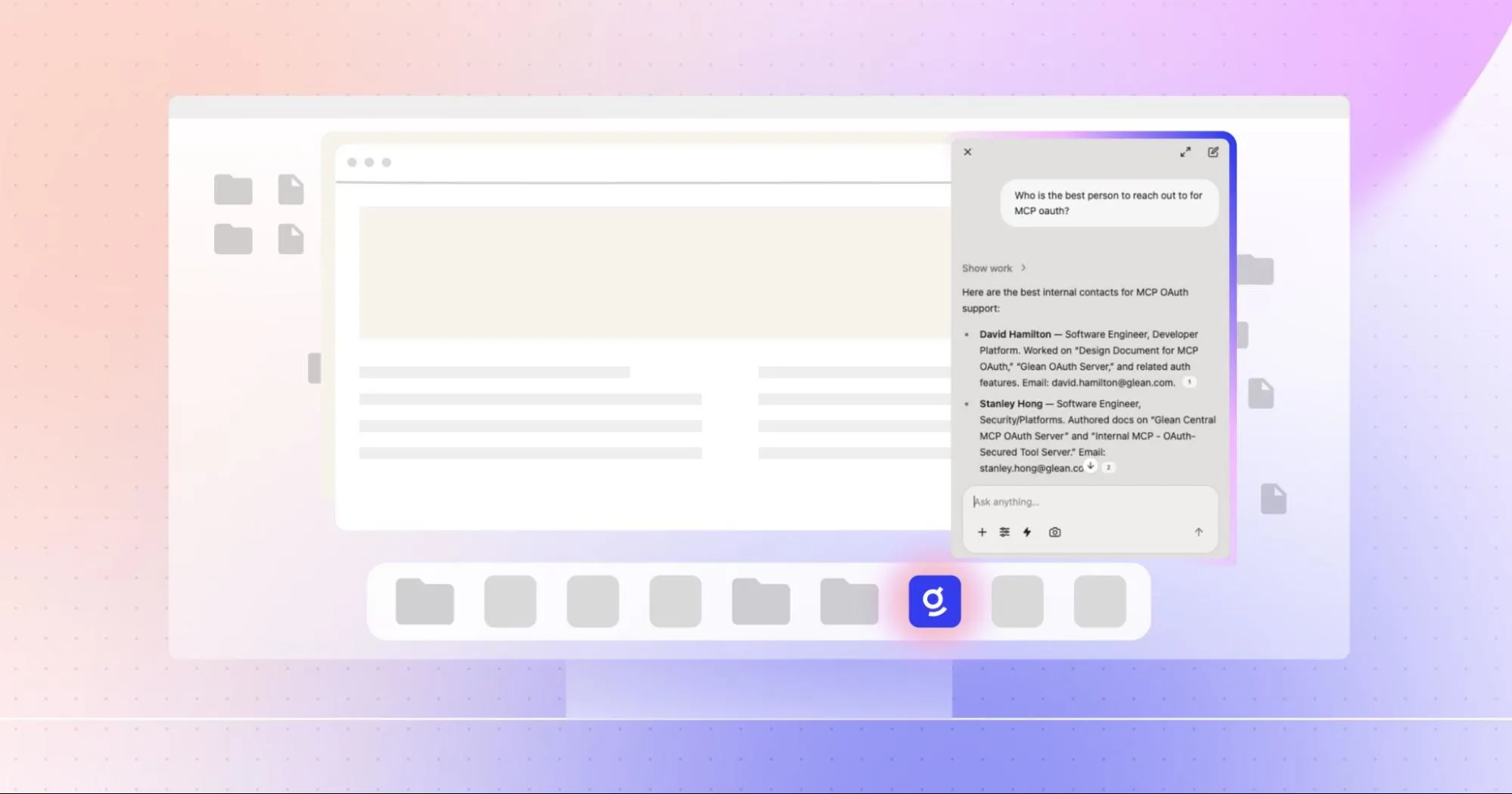
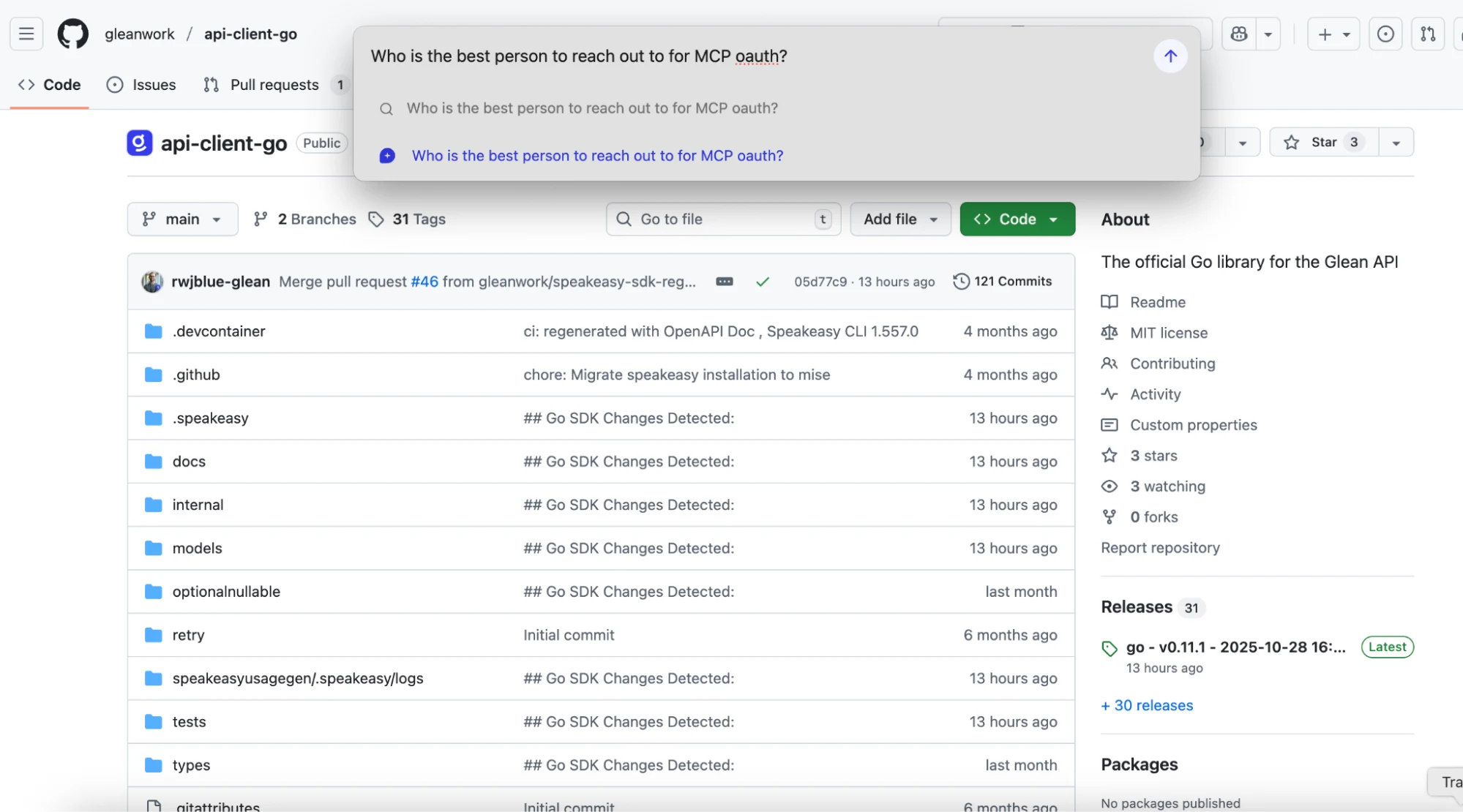
The Assistant-first prompt bar enables your desktop to become a conversation starter. Just hit Command - Shift - J and start chatting with Glean Assistant—no clicks, no setup, no friction. Whether you’re drafting an email, researching a topic, or summarizing a thread, Glean is right there when you need it. Instead of switching screens, customers can use a shortcut and:
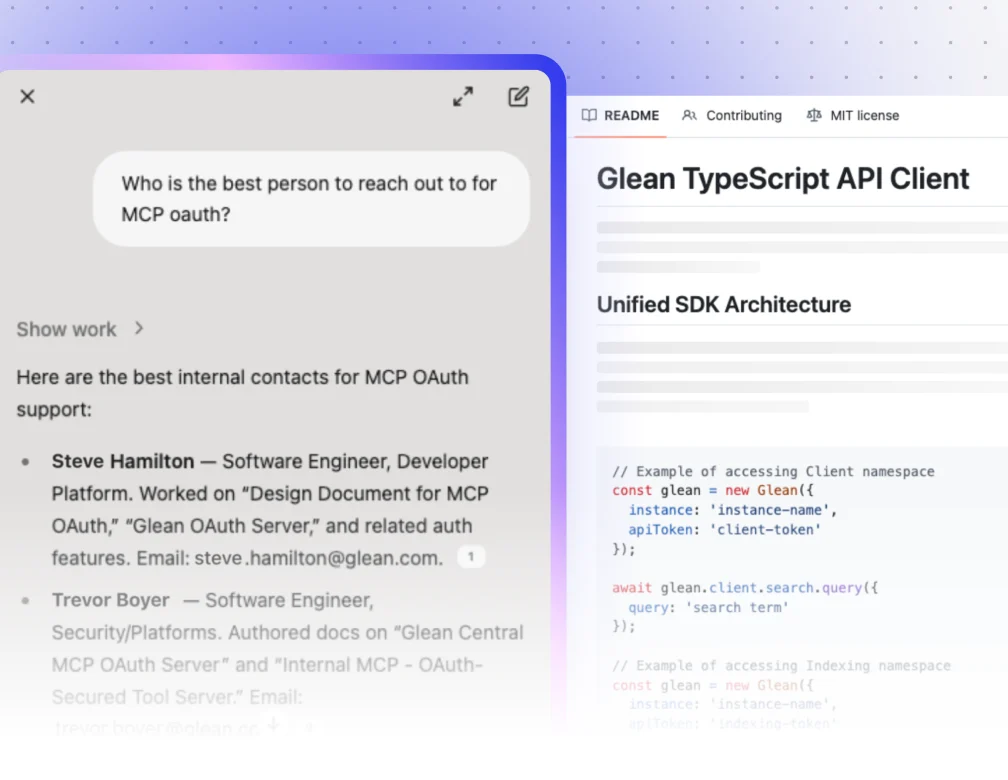
- Find out “Who owns MCP OAuth?” and get the right people, docs, and channels to unblock your question.
- Ask “What are the three big takeaways from last week’s roadmap sync with links to source notes?”
- Figure out “What are the key objections from Acme Corp this quarter and how should I respond?”
Keep Glean in view with quick chat
Quick chat is a lightweight, always-on-top chat window that floats above your apps. Keep Glean open side-by-side to iterate on drafts, compare answers, or ask follow-ups—without switching tabs or losing context. It’s the fastest way to stay in flow while keeping Glean Assistant exactly where you need it. Users can use quick chat to:
- Have Glean assist in code reviews by explaining unfamiliar functions, finding related PRs, or surfacing style guide rules without losing your place in the diff.
- Draft a product update in Google Docs while Glean rewrites headlines, trims jargon, and checks tone in the floating window.
- Identify action items and owners from meeting notes, while your project board stays open for drag‑and‑drop updates.
Share what you see with screenshot-to-chat
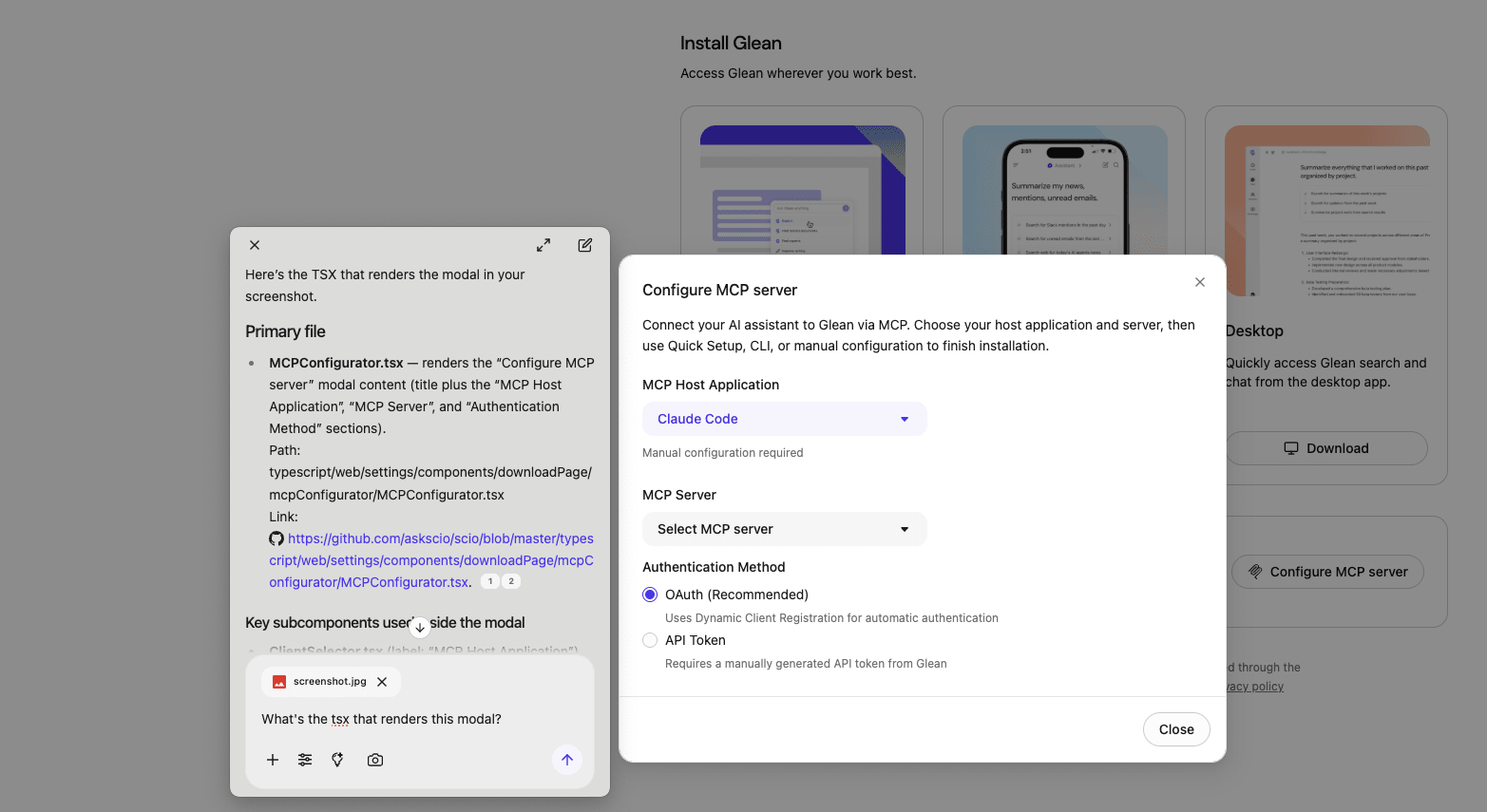
With screenshot-to-chat, you can now share what’s on your screen—whether it’s a document, slide, or UI state—and let Glean “see” your context. When screen capture permissions are enabled, just click the screenshot icon in quick chat or desktop chat, and it automatically uploads the image to get sharper, more relevant answers. Customers can use screenshot-to-chat to:
- Capture a UI component and ask for its source code to get a direct link to the implementation in GitHub.
- Screenshot and ask Glean to identify key stakeholders, open decisions, and gaps to close before you join.
- Share an error message to get likely causes, related docs, and quick fixes.
- Paste a long thread and ask for highlights, takeaways, and next steps.
As always, the Glean desktop app is built with privacy and control in mind. The app respects your enterprise permissions everywhere and is permission-aware by design. Shared context only includes what you explicitly add, like a screenshot, and the desktop app never indexes your local files.
Getting started
The new Glean desktop is the fastest way to bring your organization’s knowledge—and a capable AI partner—right to your desktop. You can start a chat in a keystroke, keep it visible while you work, and give it visual context to improve the quality of every answer. No switching tabs, no losing your place—just seamless, AI-powered productivity at your fingertips.
Glean desktop is available on macOS and Windows. To get started, download via app.glean.com under Settings -> Install -> Desktop, or visit this webpage to learn more.
Check out additional details on other Glean features released this drop, or sign up for a demo if you'd like to learn more about Glean!
The screenshot feature is currently unavailable for Windows users.
